Publication note. I.T.S. reviewed the production captures in this article before publication. Confidential information was removed. Employee names that remain visible in audit fields are non-confidential and also appear in public corporate records.
The Workflow at a Glance
Entity Management is not a collection of unrelated maintenance screens. It is one configurable workspace that changes its content according to the selected entity type, the loaded record, its active classes, the available editors, and the current user’s access.
- Choose the type of entity or catalog to maintain.
- Search for and load the record.
- Review its basic properties and active classes.
- Find and open the editor for the task.
- Make changes and resolve any validation.
- Save, then continue with the refreshed entity.
The important usability decision is consistency. A person, facility, security identity, carrier, provider, or master list may expose different information, but users do not have to learn a new navigation model for each one.
Start at the Top: Choose What You Are Managing
The first decision happens at the top of the module. A selector establishes the current editing context: for example, a person, a facility, or a master list. This is more than a visual filter. It tells the framework what kind of record the user intends to maintain.
Once the selection changes, the rest of the workspace is composed for that context. The available search results, basic properties, applicable classes, editor categories, and supporting columns can all change. The user therefore begins every task by answering one practical question: What kind of thing am I working on?
The selector at the top establishes the vocabulary for the entire screen below it.
Read the Three-Panel Workspace
After the context is selected, the screen is read from left to right. Each area has one responsibility.
| Area | What the user sees | What the user does |
|---|---|---|
| Entity area | Search, identity, picture, basic properties, and applicable classes | Find the record, edit core information, and review or change its roles |
| Editor catalog | Editors relevant to the current type and active classes | Search, filter by category, and choose the capability needed for the task |
| Editor workspace | The selected specialized editor and its working data | Perform the detailed operation, validate changes, and save |
The division prevents the screen from becoming one enormous form. Basic identity stays visible on the left, available capabilities remain visible in the center, and the active task receives the larger workspace on the right.
Workflow 1: Edit an Existing Entity
- Choose the entity context. Select the type of record to maintain before searching.
- Find the record. Use the search area to locate the entity by the information available in that context.
- Review the identity. Confirm the name, picture, basic fields, and current applicable classes.
- Edit at the appropriate level. Change a basic property directly or open a specialized editor for a more focused task.
- Save the result. The framework validates the pending changes before persistence and identifies anything that needs correction.
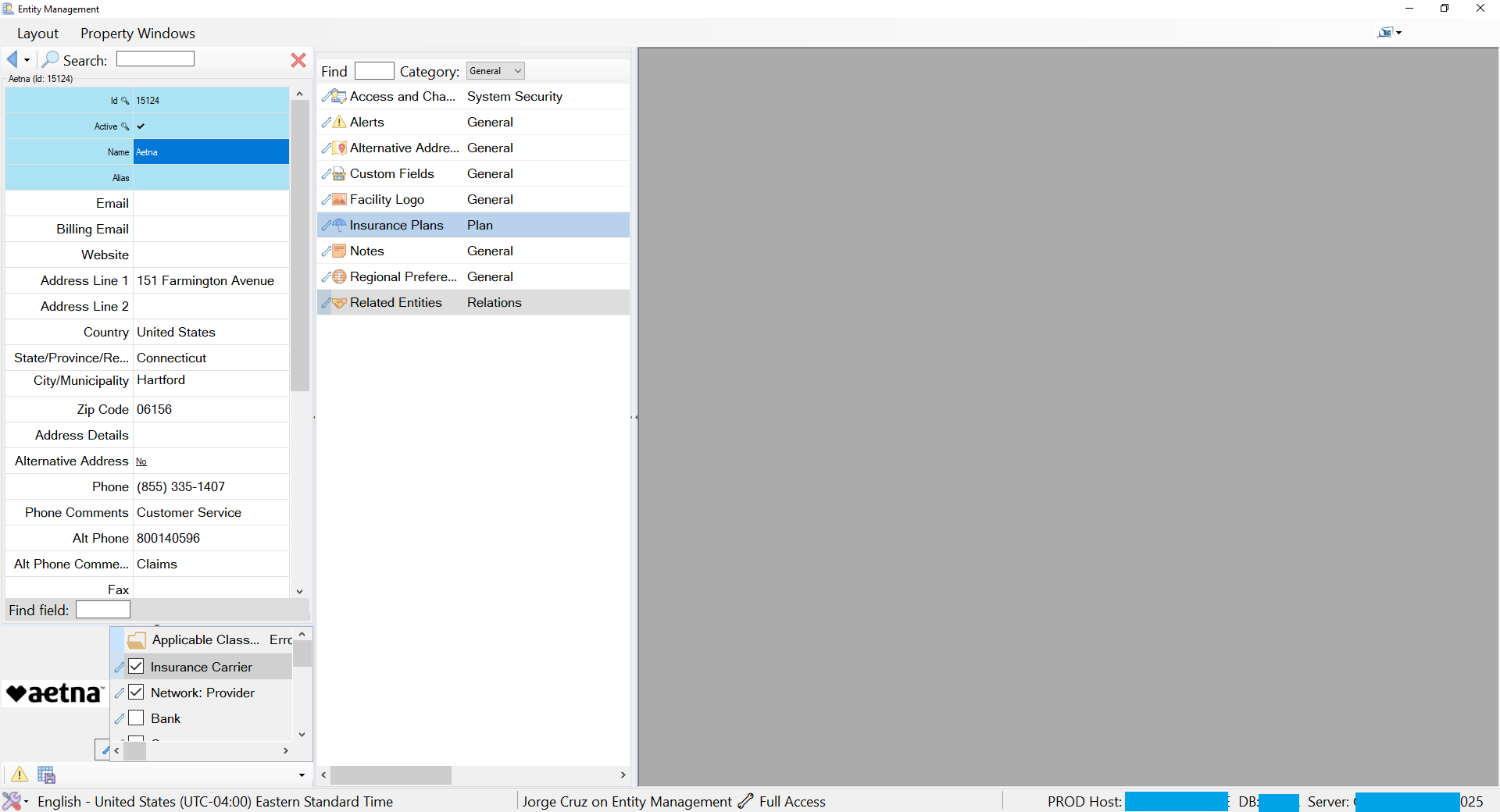
The screen below shows why the full application context matters. The facility remains visible while its applicable classes and editor catalog explain what can be done with it. The user does not navigate away from the entity to a separate maintenance application.
Workflow 2: Change Applicable Classes
An entity’s type establishes its structural identity; its active classes establish the business roles it currently performs. A person may become a user or provider. A facility may operate as a hospital, network, pharmacy, carrier, or another configured role.
- Load the entity and review its applicable classes.
- Activate or deactivate the appropriate class, subject to access.
- Save the membership change.
- Allow the module to resolve the editor catalog again.
Newly active classes can introduce new editors, while removed classes can remove capabilities that no longer apply. This is why changing a class is an operational decision rather than a cosmetic label change.
The current user may not be permitted to change every class. Depending on effective access, a class can be editable, visible but read-only, or unavailable.
Workflow 3: Find and Open an Editor
The center catalog contains only the editors that apply to the current entity and security context. Users can search the catalog, narrow it by category, and open the editor needed for the current task. The editor then appears in the right-hand workspace.
Opening an editor is also the point at which its detailed working data is loaded. The entity’s basic record and applicable classes are available first; the properties and related data for every possible editor are not loaded in advance. This keeps the initial entity load focused and avoids preparing work the user may never open.
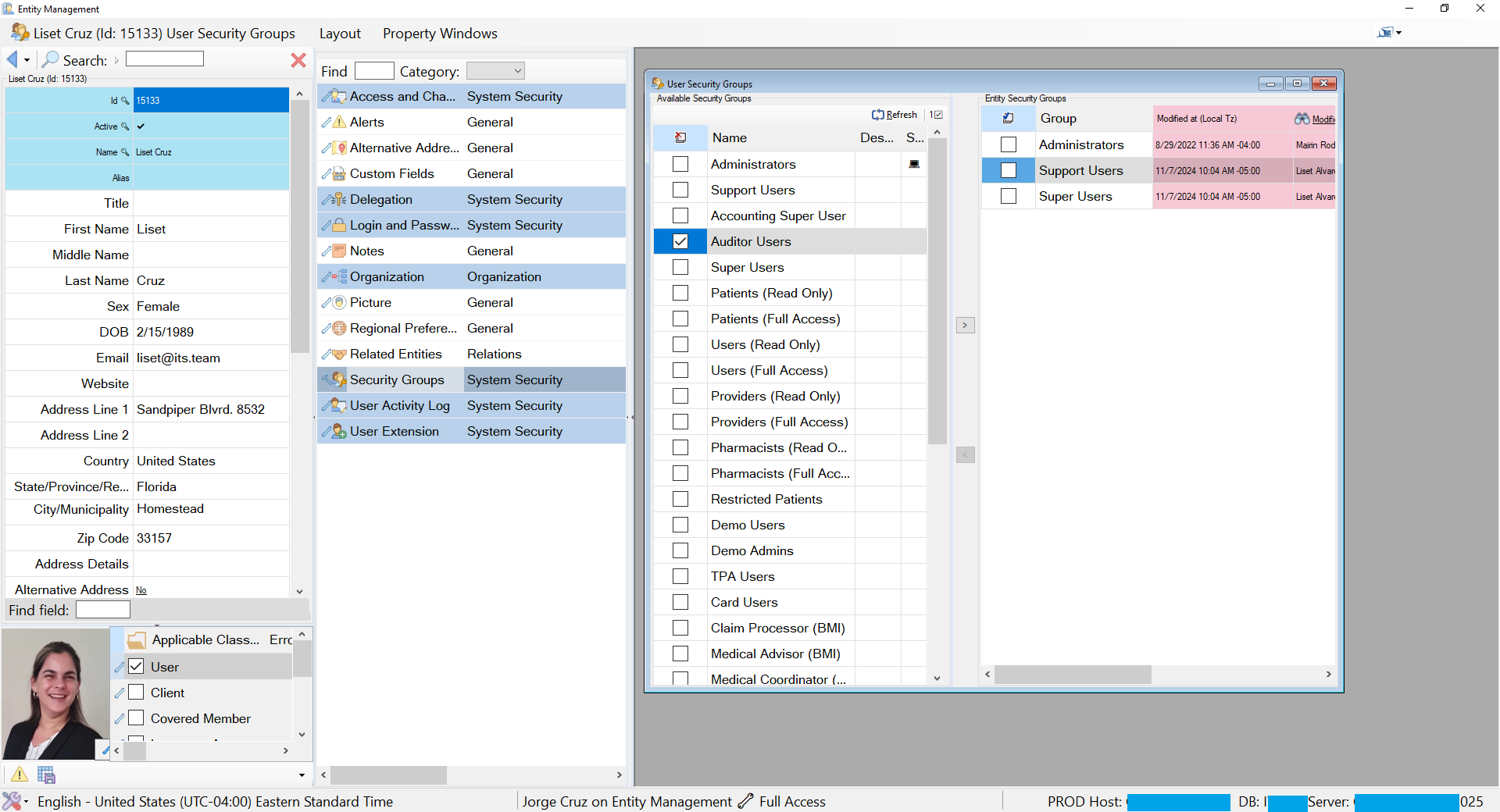
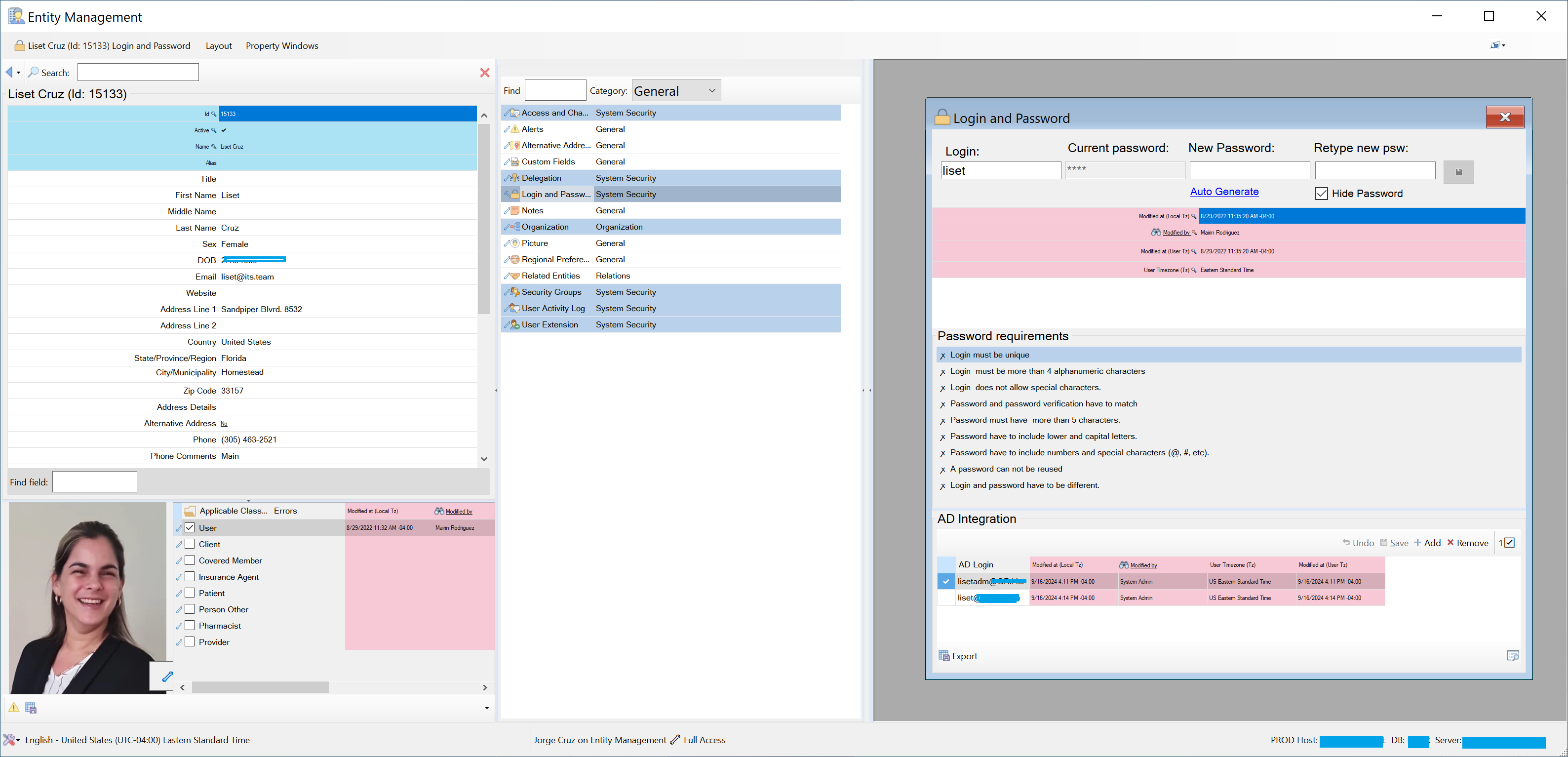
Editors can be simple or specialized. A grid may maintain a small collection; another editor may coordinate credentials, business relationships, plans, assignments, or several related views. The hosting workflow stays the same even when the interaction is different.
Save, Undo, and Validate
When the user changes properties, classes, or editor data, the module tracks the pending work. Save becomes the deliberate boundary between the current persisted record and the proposed changes. Cancel or undo actions allow the user to abandon work that should not be kept.
Validation runs before persistence. If a rule fails, the module keeps the changes in context and points the user toward the affected property or editor. The user corrects the problem and tries again rather than receiving a disconnected error after leaving the screen.
Other commands can appear according to the configured context, including refresh, export, alerts, reporting, or additional operations. The exact command set may vary, but it follows the same access and validation rules as the rest of the workspace.
Effective Access in Daily Use
Entity Management resolves access before presenting an operation as available. A user may be able to edit the overall entity but only view one editor. Another user may not see that editor at all. An entity can also enter a read-only state that prevents changes even when the user normally has broader access.
The interface communicates the outcome through visible availability, read-only fields, disabled commands, and access indicators. This matters because the same entity can legitimately produce different working screens for different users without becoming a different entity.
Workflow 4: Maintain a Master List
Master lists use the same operating model as people and facilities. The user first selects Master List at the top, then chooses the catalog to maintain. That list opens in the shared workspace instead of launching a separate settings application.
- Select the Master List context.
- Choose the required catalog from the available lists.
- Add, edit, reorder, activate, retire, or remove items according to the list’s rules.
- Review audit information or export the list when needed.
- Save and resolve any validation messages.
Related Video: Managing Master Lists in Entity Management
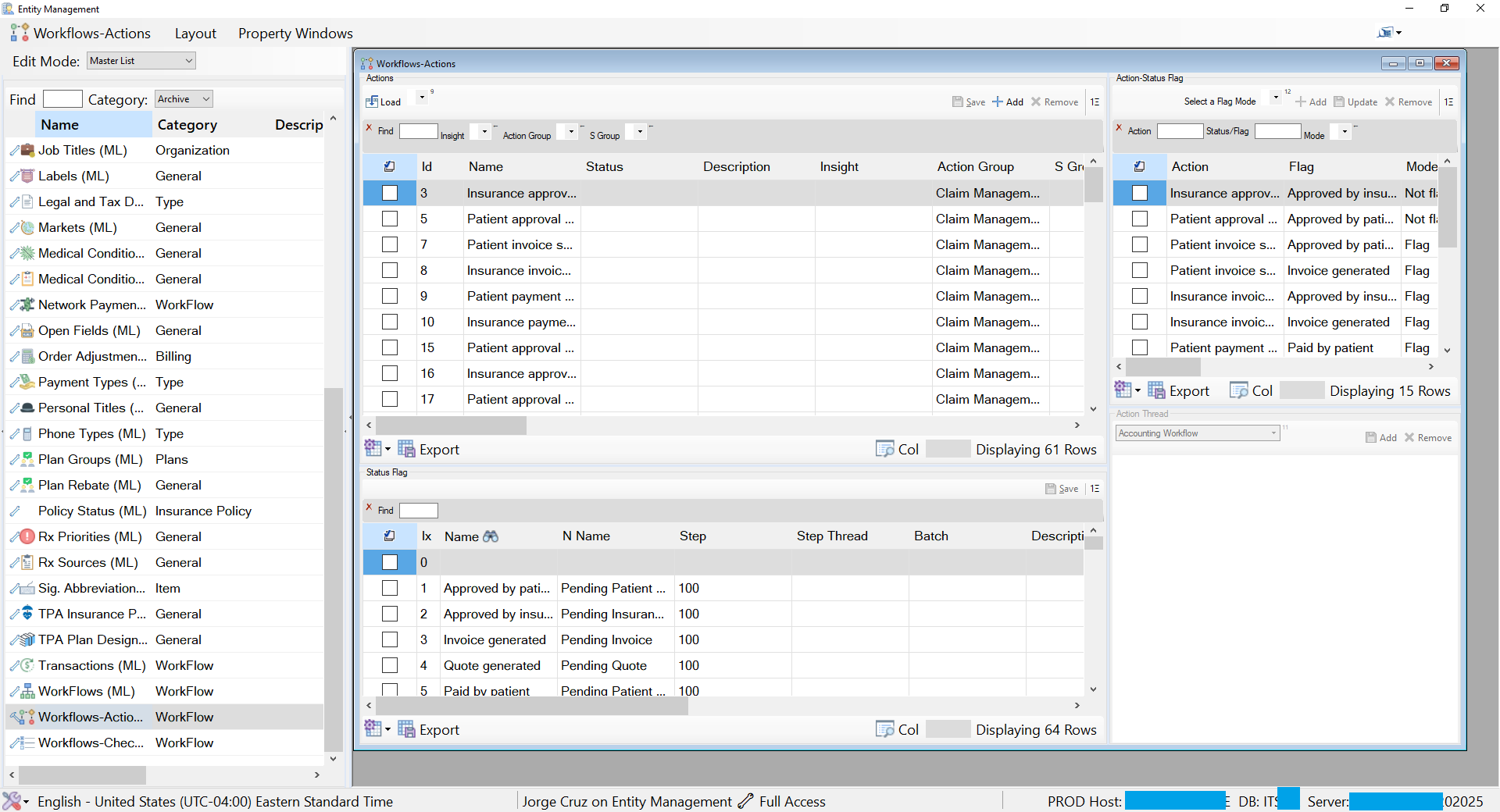
This live workflow begins with a User entity, changes the editing context to Master List, searches the available catalogs, and opens Job Titles and Address Types through the same configurable workspace.

What to watch: User context at 00:00 · Master List mode at 00:06 · Job Titles at 00:12 · Address Types at 00:20 · return to the context selector at 00:25.
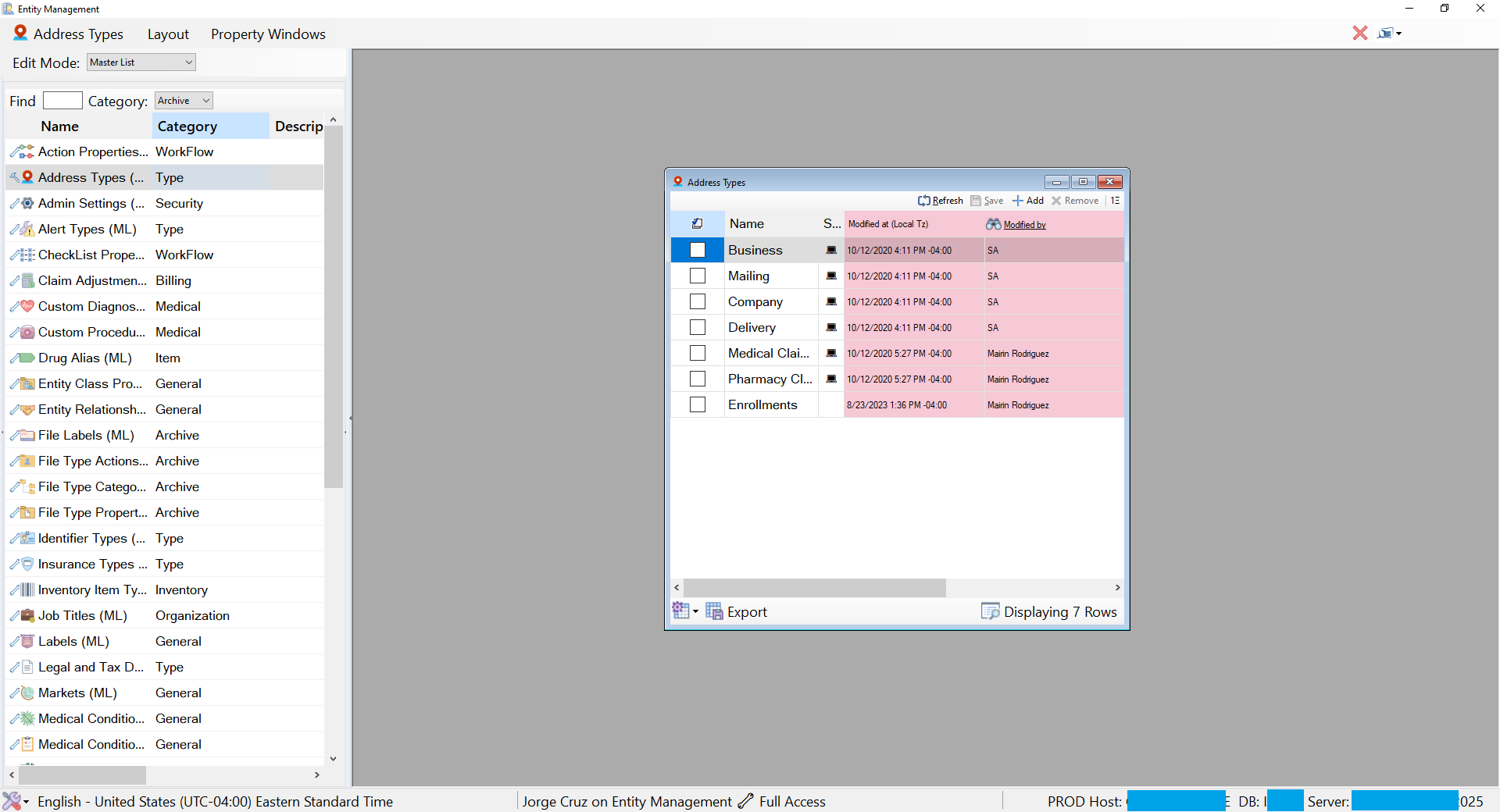
Simple and complex catalogs follow the same path
A simple master list may be a flat set of values such as address types, departments, titles, markets, or labels. A complex master list may coordinate several related views and rules. Complexity changes what appears inside the workspace, not how the user reaches it.
The Consistent Operating Grammar
Once users understand the sequence, they can apply it across the system:
SELECT CONTEXT
      ↓
FIND ENTITY OR CATALOG
      ↓
REVIEW BASIC PROPERTIES + ACTIVE CLASSES
      ↓
CHOOSE THE RELEVANT EDITOR
      ↓
EDIT → VALIDATE → SAVE
      ↓
CONTINUE WITH THE REFRESHED ENTITY
This consistency is the operational value of one configurable editor. New business vocabularies and capabilities can be introduced without creating a new navigation language for users.
Operating Context and Boundaries
This workflow belongs to the ITS Framework desktop environment. The application runs on controlled Windows application servers close to SQL Server, and users work through managed remote desktop access. The organization can therefore rely on a rich, data-bound workspace inside a trusted operational boundary.
The same interaction model should not be copied unchanged into public browser applications, offline clients, or untrusted networks. Those environments require different transport, identity, API, and synchronization decisions. The reusable idea is the workflow discipline: establish context, expose only applicable capabilities, load details when needed, validate in place, and preserve a consistent user grammar.
The Final Principle
Entity Management becomes understandable when the user always knows three things: what kind of record is selected, which capabilities apply to it, and where the current task is being performed.
Select the context, find the entity, choose the capability, complete the work, and save. The business subject changes; the operating model does not.